USB Driver Installation Manual
This technical article provides you an overview of how to install USB drivers.
Table of Contents
Introduction
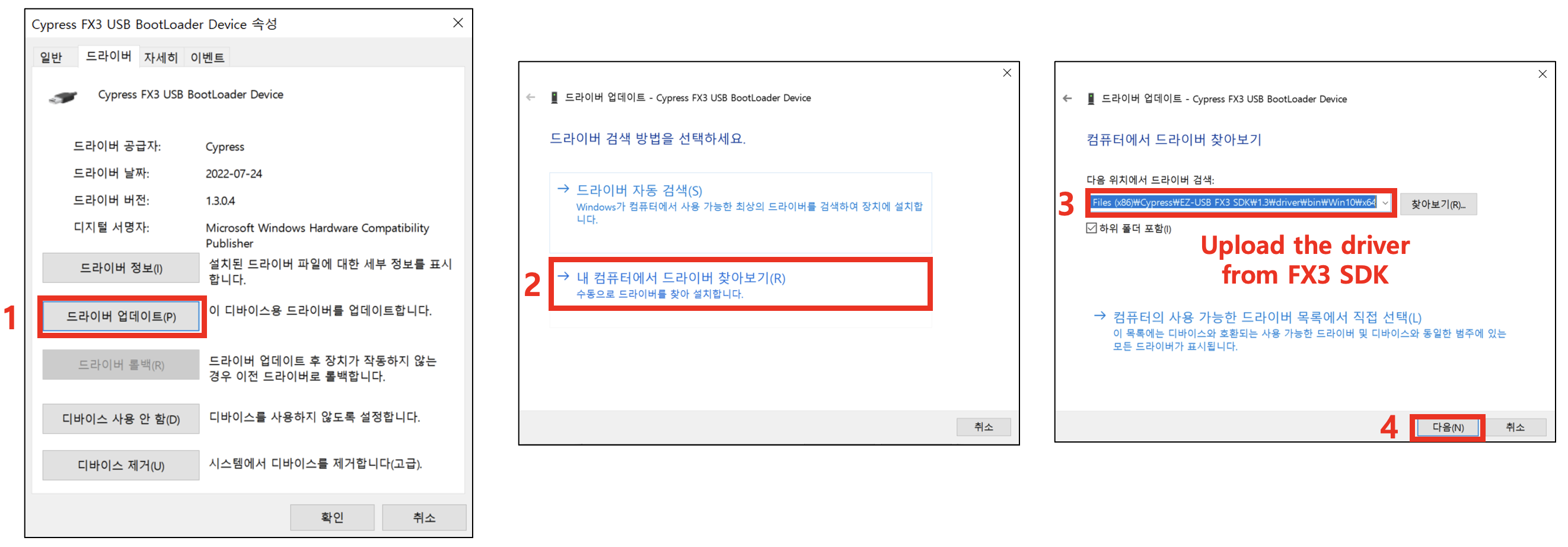
Delta series cameras use an internal Cypress USB controller, so the USB driver on the host PC must be changed to the driver provided with the Cypress FX3 SDK. If the correct driver is not installed, the camera may not be recognized properly over USB. Follow the steps below to replace the current USB driver with the FX3 SDK driver.
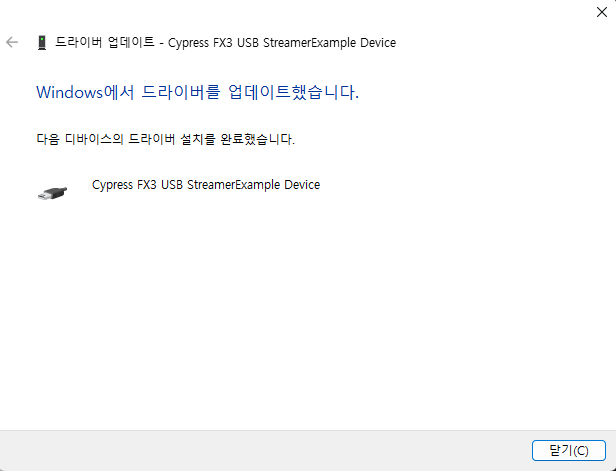
After the driver installation is complete, each Delta camera should appear in Windows Device Manager as follows:
Delta_01: Cypress FX3 USB StreamerExample DeviceDelta_10: Cypress FX3 USB BulkloopExample Device
Windows default driver
On Windows, the camera may be assigned to a default Windows driver when it is first connected, such as WinUSB. In that case, open the device properties in Device Manager, remove the device, select Delete the driver software for this device, and then update the device again using the downloaded FX3 SDK driver. The camera can be scanned and recognized correctly only after the FX3 SDK driver is applied.
Installing Drivers
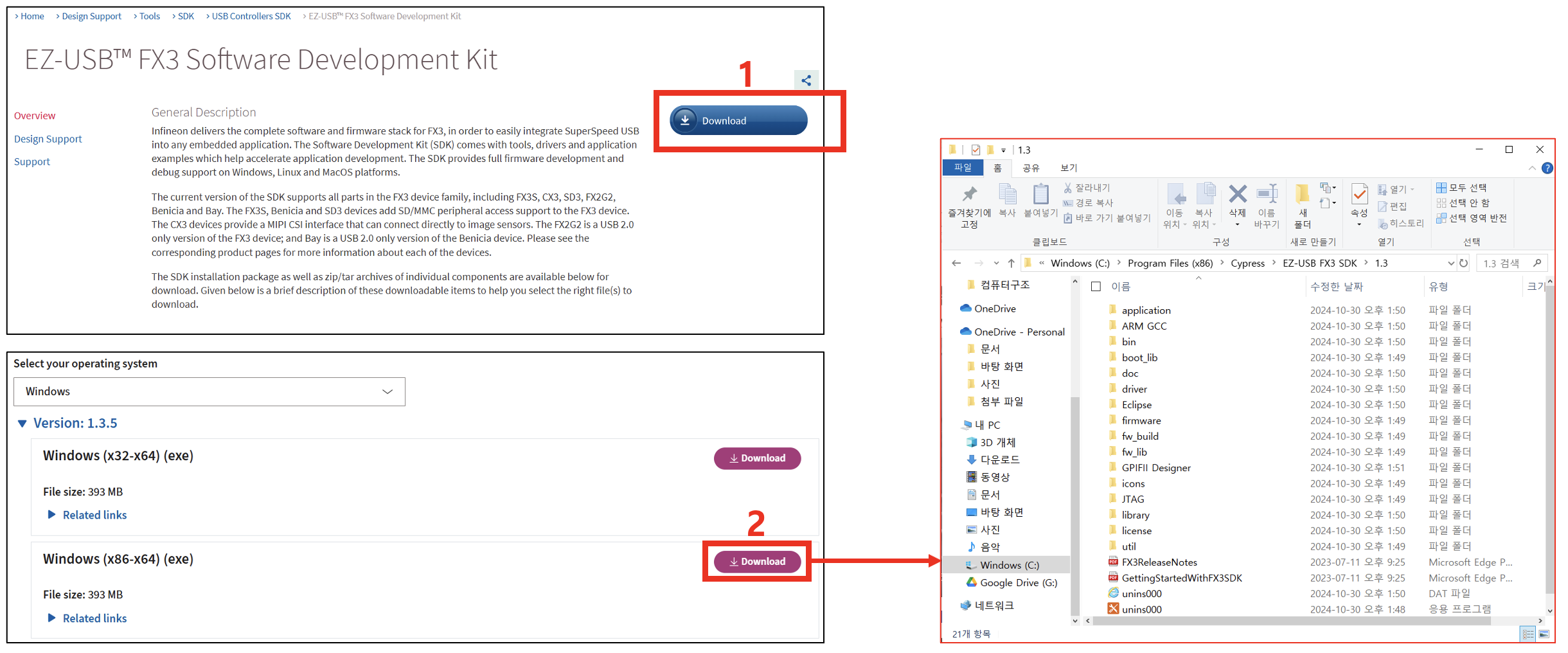
1) Go to this link and download the FX3 SDK: https://www.infineon.com/cms/en/design-support/tools/sdk/usb-controllers-sdk/ez-usb-fx3-software-development-kit/
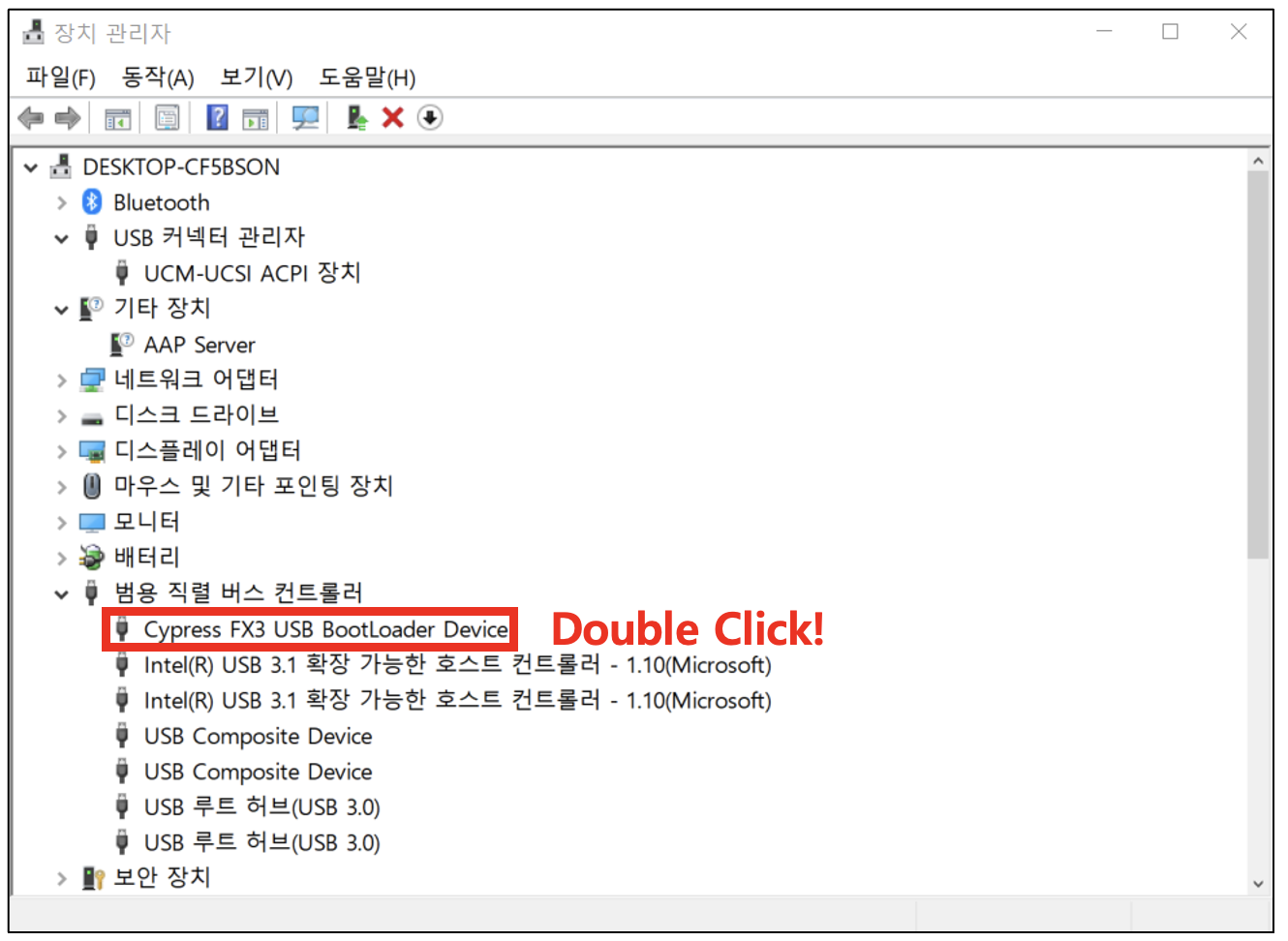
2) Connect the Delta Series USB camera and find Device.
3) Update the driver manually