Single Streaming
This sample shows how to receive live event data from a single DELTA Series
camera and display generated ColorFrame output with OpenCV. Use this sample
after confirming that the camera can be opened with the
Device Connection sample.
Back to Code Samples.
Example Overview
| Step | SDK API | Purpose |
|---|---|---|
| 1 | scanDevices() / openDevice() |
Find and open a connected DELTA Series camera. |
| 2 | applySensorSetting() |
Apply the recommended sensor setting file. |
| 3 | setFrameGeneration() |
Choose how event data is converted into generated frames. |
| 4 | setOutputType() |
Select ColorFrame output for OpenCV preview. |
| 5 | setColorFormat() / setColor() |
Choose gray or RGB event visualization. |
| 6 | getColorFrameBufferSize() |
Get the required caller-owned frame buffer size. |
| 7 | startStream() |
Start live USB streaming. |
| 8 | getColorFrame() |
Read generated frames from the live stream. |
| 9 | stopStream() / closeDevice() |
Stop streaming and release the device. |
Expected Result
When the sample runs successfully, an OpenCV preview window appears and shows the live camera output.
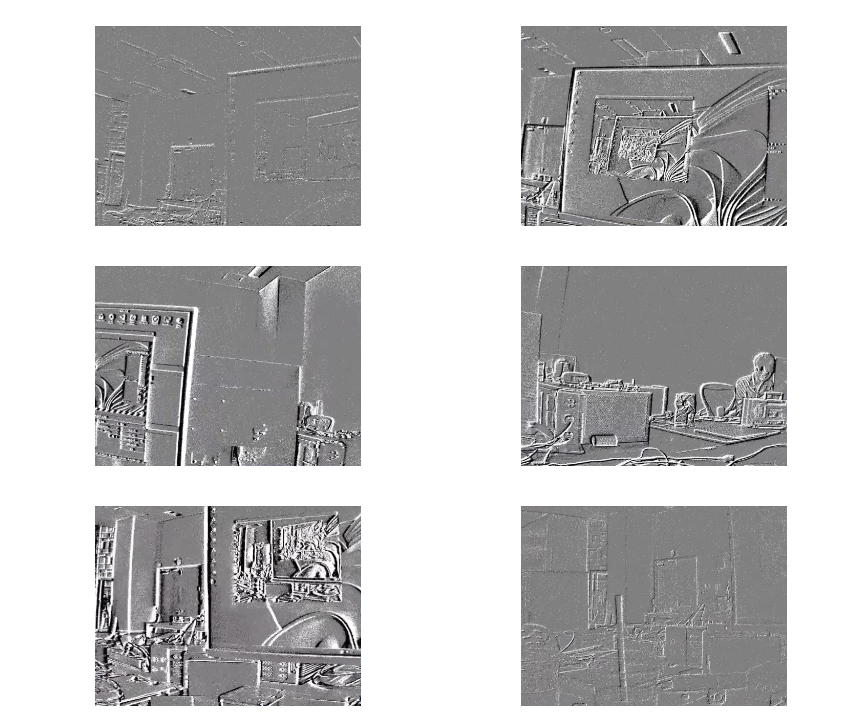
Code Walkthrough
Edit the User Control Panel
The USER CONTROL PANEL section is the only part you normally need to edit.
Each option group has one active line and one or more commented alternatives.
To use a different mode, comment out the current active line and uncomment the
mode you want to use.
Select a Camera
selectDeviceIndex selects which camera from the latest scanDevices() result
will be opened.
const std::int32_t selectDeviceIndex = 0;
selectDeviceIndex = 0 selects the first detected camera. If multiple cameras
are connected, use 1, 2, and so on to choose another detected camera.
Select a Frame Generation Mode
Frame generation controls how raw event data is grouped into display frames.
Only one selected_framemode line should be active at a time.
(a) FrameEndBased
This is the default mode used by the example.
const std::string selected_framemode = "FrameEndBased";
const std::int32_t frameEndCount = 20;
When this mode is active, the SDK generates one output frame after the selected number of frame-end markers. This is a good default for live preview because it follows the camera stream structure directly.
(b) TimeBased
To use time-based frame generation, uncomment the TimeBased line in the
example and comment out the currently active FrameEndBased line.
// const std::string selected_framemode = "TimeBased";
const std::int32_t framePeriodMs = 16;
When this mode is active, the SDK generates one output frame at a fixed time
interval. For example, framePeriodMs = 16 is about 60 Hz.
(c) EventCountBased
To use event-count-based frame generation, uncomment the EventCountBased line
in the example and comment out the currently active FrameEndBased line.
// const std::string selected_framemode = "EventCountBased";
const std::int32_t eventsPerFrame = 150000;
When this mode is active, the SDK generates one output frame after the selected
number of events. If eventsPerFrame is too small, event activity can be split
across too many frames and the preview may look clipped.
Note
Keep only one selected_framemode definition active. If more than one
selected_framemode line is uncommented, the example will not compile
because the same variable is defined multiple times.
Select the Color Format
The color format controls how the generated ColorFrame is stored and shown in
OpenCV.
(a) Gray
This is the default mode used by the example.
const std::string selected_colorformat = "Gray";
When Gray is active, the SDK generates a single-channel grayscale image.
The default grayscale rendering is:
| Event State | Display Color |
|---|---|
| ON event | White |
| OFF event | Black |
| No event | Gray |
(b) RGB
To use RGB output, uncomment the RGB line in the example and comment out the
currently active Gray line.
// const std::string selected_colorformat = "RGB";
When RGB is active, the SDK generates a three-channel RGB image. You can
customize the ON event, OFF event, and no-event colors with rgbColor.
const delta::EventColor rgbColor = {
    {255, 0, 0},     // ON event color
    {0, 0, 255},     // OFF event color
    {255, 255, 255}  // No event (background) color
};
The values are written in RGB order. In the default example above:
| Event State | RGB Value | Display Color |
|---|---|---|
| ON event | {255, 0, 0} |
Red |
| OFF event | {0, 0, 255} |
Blue |
| No event | {255, 255, 255} |
White |
Note
Keep only one selected_colorformat definition active. If both Gray and
RGB are uncommented, the example will not compile because the same
variable is defined multiple times.
The full user control section in the example is organized like this:
const std::int32_t selectDeviceIndex = 0;

const std::string selected_framemode = "FrameEndBased";
const std::int32_t frameEndCount = 20;

// const std::string selected_framemode = "TimeBased";
const std::int32_t framePeriodMs = 16;

// const std::string selected_framemode = "EventCountBased";
const std::int32_t eventsPerFrame = 150000;

const std::string selected_colorformat = "Gray";
// const std::string selected_colorformat = "RGB";
Open the Device and Apply Sensor Settings
This example keeps the device setup minimal. For a detailed connection flow, see Device Connection.
std::int32_t deviceCount = 0;
delta::Status status = delta::scanDevices(&deviceCount);

if (status != delta::Status::Success) {
    std::cout << "scanDevices failed: "
              << delta::getStatusMessage(status) << "\n";
    return 1;
}

delta::DeviceInfo deviceInfo{};
status = delta::getDeviceInfo(selectDeviceIndex, &deviceInfo);

delta::DeviceHandle cameraHandle = nullptr;
status = delta::openDevice(deviceInfo.index, &cameraHandle);
After opening the camera, apply the recommended sensor setting file for the detected model.
const std::filesystem::path settingFilePath =
    deviceInfo.type == delta::DeviceType::Delta_01
        ? std::filesystem::path(DELTA_SETTINGS_DIR) / "Delta_01_1000FPS.txt"
        : std::filesystem::path(DELTA_SETTINGS_DIR) / "Delta_10_2000FPS.txt";

const std::string settingFileString = settingFilePath.generic_string();
status = delta::applySensorSetting(cameraHandle, settingFileString.c_str());
Note
Call applySensorSetting() before starting live streaming. The setting file
configures the sensor and prepares the SDK to generate output frames.
Select the Frame Generation Mode
The SDK can generate display frames from event data in three ways.
| Mode | Helper | Description |
|---|---|---|
FrameEndBased |
delta::frameEndBased(frameEndCount) |
Generates a frame after a selected number of frame-end markers. |
TimeBased |
delta::timeBased(framePeriodMs) |
Generates a frame at a fixed time interval. |
EventCountBased |
delta::eventCountBased(eventsPerFrame) |
Generates a frame after a selected number of events. |
if (selected_framemode == "FrameEndBased") {
    status = delta::setFrameGeneration(
        cameraHandle,
        delta::frameEndBased(frameEndCount)
    );
}
else if (selected_framemode == "TimeBased") {
    status = delta::setFrameGeneration(
        cameraHandle,
        delta::timeBased(framePeriodMs)
    );
}
else if (selected_framemode == "EventCountBased") {
    status = delta::setFrameGeneration(
        cameraHandle,
        delta::eventCountBased(eventsPerFrame)
    );
}
Note
Very small eventsPerFrame values can split event activity across too many
frames and make the preview look clipped.
Set the Output Type
For OpenCV preview, this sample enables only ColorFrame output.
status = delta::setOutputType(cameraHandle, delta::OutputType::ColorFrame);

if (status != delta::Status::Success) {
    std::cout << "setOutputType failed: "
              << delta::getStatusMessage(status) << "\n";
    delta::closeDevice(cameraHandle);
    return 1;
}
setOutputType() controls which processing output is generated internally. For
this preview example, generating only ColorFrame avoids creating unused output
formats.
Select the Color Format
Use Gray for a simple monochrome preview, or RGB to customize ON, OFF, and
background colors.
const delta::EventColor rgbColor = {
    {255, 0, 0},     // ON event color
    {0, 0, 255},     // OFF event color
    {255, 255, 255}  // No event background color
};
if (selected_colorformat == "Gray") {
    status = delta::setColorFormat(cameraHandle, delta::ColorFormat::Gray);
}
else if (selected_colorformat == "RGB") {
    status = delta::setColorFormat(cameraHandle, delta::ColorFormat::RGB);

    if (status == delta::Status::Success) {
        status = delta::setColor(cameraHandle, &rgbColor);
    }
}
Prepare the Frame Buffer
Before reading frames, allocate a caller-owned buffer and attach it to
delta::ColorFrame.
const std::uint32_t bufferSize =
    delta::getColorFrameBufferSize(cameraHandle);

if (bufferSize == 0) {
    std::cout << "getColorFrameBufferSize failed.\n";
    delta::closeDevice(cameraHandle);
    return 1;
}

std::vector<std::uint8_t> frameBuffer(bufferSize);

delta::ColorFrame frame{};
frame.startAddress = frameBuffer.data();
frame.bufferSize = bufferSize;
Note
Call getColorFrameBufferSize() after setting the color format. RGB output
requires a larger buffer than gray output.
Start Live Streaming
Start the stream after the device setup, frame generation, output type, color format, and frame buffer are ready.
status = delta::startStream(cameraHandle);

if (status != delta::Status::Success) {
    std::cout << "startStream failed: "
              << delta::getStatusMessage(status) << "\n";
    delta::closeDevice(cameraHandle);
    return 1;
}
Display Frames with OpenCV
The preview loop reads the latest generated frame and displays it with OpenCV.
Press ESC to exit.
while (true) {
    bool hasFrame = false;

    for (int drainCount = 0; drainCount < 8; ++drainCount) {
        status = delta::getColorFrame(cameraHandle, &frame, 0);

        if (status != delta::Status::Success) {
            break;
        }

        hasFrame = true;
    }

    if (!hasFrame) {
        if (cv::waitKey(1) == 27) {
            break;
        }
        continue;
    }

    if (frame.colorFormat == delta::ColorFormat::RGB) {
        cv::Mat rgbImage(
            frame.header.height,
            frame.header.width,
            CV_8UC3,
            frame.startAddress
        );

        cv::Mat bgrImage;
        cv::cvtColor(rgbImage, bgrImage, cv::COLOR_RGB2BGR);
        cv::imshow("DELTA Live Streaming", bgrImage);
    }
    else {
        cv::Mat grayImage(
            frame.header.height,
            frame.header.width,
            CV_8UC1,
            frame.startAddress
        );

        cv::imshow("DELTA Live Streaming", grayImage);
    }

    if (cv::waitKey(1) == 27) {
        break;
    }
}
The inner loop calls getColorFrame() several times to drain older generated
frames and keep the preview close to the latest stream output.
Stop Streaming
Stop the stream and close the camera before the application exits.
delta::stopStream(cameraHandle);
delta::closeDevice(cameraHandle);
cv::destroyAllWindows();