Playback Status Display
This sample shows how to monitor playback status while replaying a saved .dvs
file. It registers playback callback functions, stores the latest event count,
frame count, and read-over state, then draws those values on top of the OpenCV
preview window.
Back to Code Samples.
Example Overview
| Step | SDK API | Purpose |
|---|---|---|
| 1 | openFile() |
Open a saved .dvs raw data file. |
| 2 | setPlaybackMode() |
Select one-time playback or loop playback. |
| 3 | setFrameGeneration() |
Choose how recorded event data is converted into generated frames. |
| 4 | setOutputType() |
Select ColorFrame output for OpenCV preview and overlay display. |
| 5 | setColorFormat() / setColor() |
Choose gray or RGB event visualization. |
| 6 | getColorFrameBufferSize() |
Get the required caller-owned frame buffer size. |
| 7 | setEventCountCallback() |
Receive total parsed event count updates. |
| 8 | setFrameCountCallback() |
Receive total parsed frame count updates. |
| 9 | setReadOverCallback() |
Detect when the playback file has been fully read. |
| 10 | startPlayback() |
Start reading events from the file. |
| 11 | pausePlayback() / resumePlayback() |
Pause or resume playback with keyboard input. |
| 12 | getColorFrame() |
Read generated frames and draw playback status on the preview. |
| 13 | stopPlayback() / closeFile() |
Stop playback and release the file handle. |
Expected Result
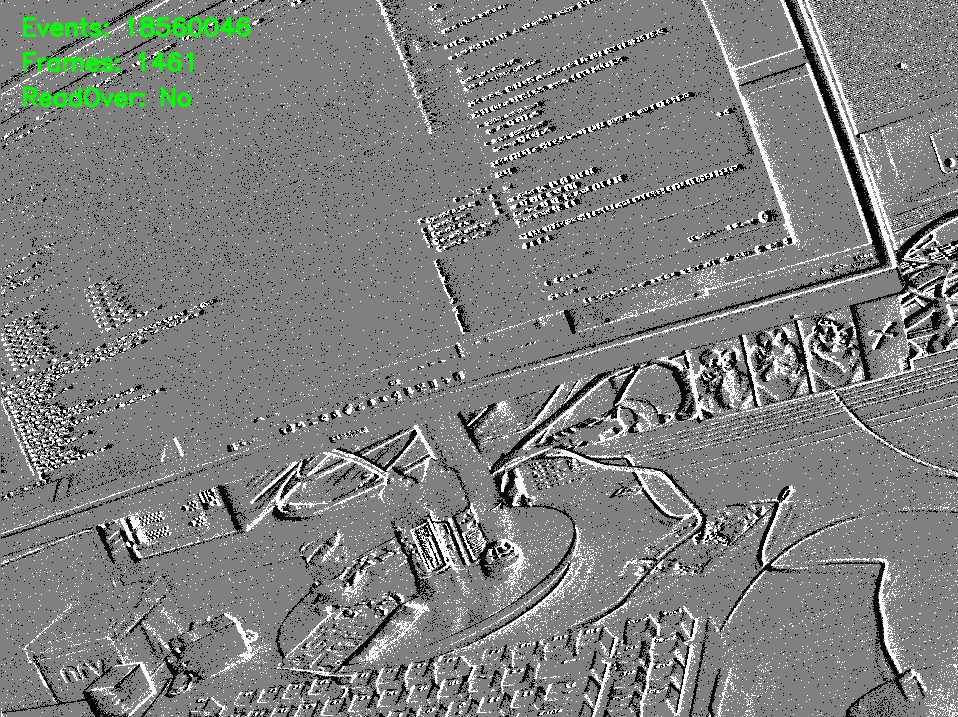
Events : Total number of events accumulated during playback
Frames : Total number of frames accumulated during playback
ReadOver : Indicates whether the playback file has been fully read
Code Walkthrough
Edit the User Control Panel
The USER CONTROL PANEL section is the only part you normally need to edit.
Each option group has one active line and one or more commented alternatives.
To use a different mode, comment out the current active line and uncomment the
mode you want to use.
Select a Playback File
playbackFilePath points to the .dvs raw data file that will be opened.
const std::filesystem::path playbackFilePath =
    std::filesystem::path(DELTA_SAMPLE_ROOT) / "saved_data" / "raw_data" / "sample.dvs";
sample.dvs is a placeholder file name. Replace it with the raw data file you
want to monitor during playback.
Note
Use Raw Data Saving to create a .dvs
file from a live camera stream.
Select a Playback Mode
Only one selected_playbackmode line should be active at a time.
(a) Once
This is the default mode used by the example.
const std::string selected_playbackmode = "Once";
When this mode is active, the SDK plays the .dvs file one time. The
setReadOverCallback() callback can be used to detect when the file has been
fully read.
(b) Loop
To use loop playback, uncomment the Loop line in the example and comment out
the currently active Once line.
// const std::string selected_playbackmode = "Loop";
When this mode is active, playback restarts from the beginning after reaching the end of the file.
Note
Keep only one selected_playbackmode definition active. If both Once and
Loop are uncommented, the example will not compile because the same
variable is defined multiple times.
Select a Frame Generation Mode
Frame generation controls how raw event data is grouped into display frames.
Only one selected_framemode line should be active at a time.
(a) FrameEndBased This is the default mode used by the example.
const std::string selected_framemode = "FrameEndBased";
const std::int32_t frameEndCount = 1;
When this mode is active, the SDK generates one output frame after the selected number of frame-end markers. This is a good default for playback preview because it follows the recorded stream structure directly.
(b) TimeBased
To use time-based frame generation, uncomment the TimeBased line in the
example and comment out the currently active FrameEndBased line.
// const std::string selected_framemode = "TimeBased";
const std::int32_t framePeriodMs = 16;
When this mode is active, the SDK generates one output frame at a fixed time
interval. For example, framePeriodMs = 16 is about 60 Hz.
(c) EventCountBased
To use event-count-based frame generation, uncomment the EventCountBased line
in the example and comment out the currently active FrameEndBased line.
// const std::string selected_framemode = "EventCountBased";
const std::int32_t eventsPerFrame = 150000;
When this mode is active, the SDK generates one output frame after the selected
number of events. If eventsPerFrame is too small, event activity can be split
across too many frames and the preview may look clipped.
Note
Keep only one selected_framemode definition active. If more than one
selected_framemode line is uncommented, the example will not compile
because the same variable is defined multiple times.
Select the Color Format
The color format controls how the generated ColorFrame is stored and shown in
OpenCV.
(a) Gray This is the default mode used by the example.
const std::string selected_colorformat = "Gray";
When Gray is active, the SDK generates a single-channel grayscale image.
The default grayscale rendering is:
| Event State | Display Color |
|---|---|
| ON event | White |
| OFF event | Black |
| No event | Gray |
(b) RGB
To use RGB output, uncomment the RGB line in the example and comment out the
currently active Gray line.
// const std::string selected_colorformat = "RGB";
When RGB is active, the SDK generates a three-channel RGB image. You can
customize the ON event, OFF event, and no-event colors with rgbColor.
const delta::EventColor rgbColor = {
    {255, 0, 0},     // ON event color
    {0, 0, 255},     // OFF event color
    {255, 255, 255}  // No event (background) color
};
The values are written in RGB order. In the default example above:
| Event State | RGB Value | Display Color |
|---|---|---|
| ON event | {255, 0, 0} |
Red |
| OFF event | {0, 0, 255} |
Blue |
| No event | {255, 255, 255} |
White |
Note
Keep only one selected_colorformat definition active. If both Gray and
RGB are uncommented, the example will not compile because the same
variable is defined multiple times.
Store Playback Status Values
The sample uses PlaybackStats to store the latest values received from SDK
callbacks. Each value is atomic because callbacks may be called from an SDK
internal thread while the main thread is reading frames and drawing the preview.
struct PlaybackStats
{
    std::atomic<std::uint64_t> totalEvents{0};
    std::atomic<std::uint64_t> totalFrames{0};
    std::atomic<bool> readOver{false};
};
Define Callback Functions
Each callback receives userData, converts it back to PlaybackStats, and
stores only the latest value.
static void onEventCount(void* userData, std::uint64_t totalEvents)
{
    auto* stats = static_cast<PlaybackStats*>(userData);
    stats->totalEvents.store(totalEvents);
}

static void onFrameCount(void* userData, std::uint64_t totalFrames)
{
    auto* stats = static_cast<PlaybackStats*>(userData);
    stats->totalFrames.store(totalFrames);
}

static void onReadOver(void* userData)
{
    auto* stats = static_cast<PlaybackStats*>(userData);
    stats->readOver.store(true);
}
Note
Keep callback functions short and thread-safe. Do not call blocking SDK APIs from inside a callback.
Open the Playback File and Prepare ColorFrame Output
Playback setup, frame generation, output type, color format, and frame buffer
preparation follow the same pattern as Playback. The sample
enables ColorFrame because playback status values are drawn on top of the
preview image.
delta::FileHandle fileHandle = nullptr;
const std::string playbackFileString = playbackFilePath.generic_string();

delta::Status status =
    delta::openFile(playbackFileString.c_str(), &fileHandle);

status = delta::setPlaybackMode(fileHandle, delta::PlaybackMode::Once);
status = delta::setOutputType(fileHandle, delta::OutputType::ColorFrame);
status = delta::setColorFormat(fileHandle, delta::ColorFormat::Gray);
const std::uint32_t bufferSize =
    delta::getColorFrameBufferSize(fileHandle);

std::vector<std::uint8_t> frameBuffer(bufferSize);

delta::ColorFrame frame{};
frame.startAddress = frameBuffer.data();
frame.bufferSize = bufferSize;
Register Playback Status Callbacks
Register the callback functions before starting playback. The same
PlaybackStats instance is passed as userData to every callback.
PlaybackStats stats;

status = delta::setEventCountCallback(fileHandle, onEventCount, &stats);
status = delta::setFrameCountCallback(fileHandle, onFrameCount, &stats);
status = delta::setReadOverCallback(fileHandle, onReadOver, &stats);
| Callback | Value |
|---|---|
setEventCountCallback() |
Total parsed event count during playback. |
setFrameCountCallback() |
Total parsed frame count during playback. |
setReadOverCallback() |
Whether the playback file has been fully read. |
Start Playback
Start playback after the file, playback setup, frame buffer, and callbacks are ready.
status = delta::startPlayback(fileHandle);

if (status != delta::Status::Success) {
    std::cout << "startPlayback failed: "
              << delta::getStatusMessage(status) << "\n";
    delta::closeFile(fileHandle);
    return 1;
}
Pause and Resume Playback
The example uses keyboard input to control playback.
| Key | Action |
|---|---|
Space |
Pause playback if running, resume playback if paused. |
P / p |
Pause playback if running, resume playback if paused. |
ESC |
Exit the example. |
bool isPaused = false;

auto handleKey = [&](int key) -> bool
{
    if (key == 27) {
        return false;
    }
    if (key == ' ' || key == 'p' || key == 'P') {
        if (!isPaused) {
            const delta::Status pauseStatus =
                delta::pausePlayback(fileHandle);
            if (pauseStatus == delta::Status::Success) {
                isPaused = true;
            }
        }
        else {
            const delta::Status resumeStatus =
                delta::resumePlayback(fileHandle);
            if (resumeStatus == delta::Status::Success) {
                isPaused = false;
            }
        }
    }
    return true;
};
Handle Read Over
When no new frame is available, the sample checks the readOver flag. If the
file has been fully read, the example exits the preview loop.
if (!hasFrame) {
    if (stats.readOver.load()) {
        std::cout << "Playback read over.\n";
        break;
    }
    if (!handleKey(cv::waitKey(1))) {
        break;
    }
    continue;
}
Display Playback Status with OpenCV
The preview loop reads the latest ColorFrame, converts it to a display image,
loads the latest callback values, and draws them with cv::putText().
const std::string eventCountText =
    "Events: " + std::to_string(stats.totalEvents.load());
const std::string frameCountText =
    "Frames: " + std::to_string(stats.totalFrames.load());
const std::string readOverText =
    std::string("ReadOver: ") + (stats.readOver.load() ? "Yes" : "No");
const cv::Scalar overlayColor(0, 255, 0);

cv::putText(displayImage, eventCountText, cv::Point(20, 35),
            cv::FONT_HERSHEY_SIMPLEX, 0.8, overlayColor, 2, cv::LINE_AA);
cv::putText(displayImage, frameCountText, cv::Point(20, 70),
            cv::FONT_HERSHEY_SIMPLEX, 0.8, overlayColor, 2, cv::LINE_AA);
cv::putText(displayImage, readOverText, cv::Point(20, 105),
            cv::FONT_HERSHEY_SIMPLEX, 0.8, overlayColor, 2, cv::LINE_AA);

cv::imshow("DELTA Playback Callback Monitor", displayImage);
The callback functions do not draw to the window directly. The main loop owns the OpenCV display, which keeps the callback path lightweight.
Stop Playback
Stop playback and close the file before the application exits.
delta::stopPlayback(fileHandle);
delta::closeFile(fileHandle);
cv::destroyAllWindows();